
Help
New here? See how AI roleplay works in Multiic →
In three steps
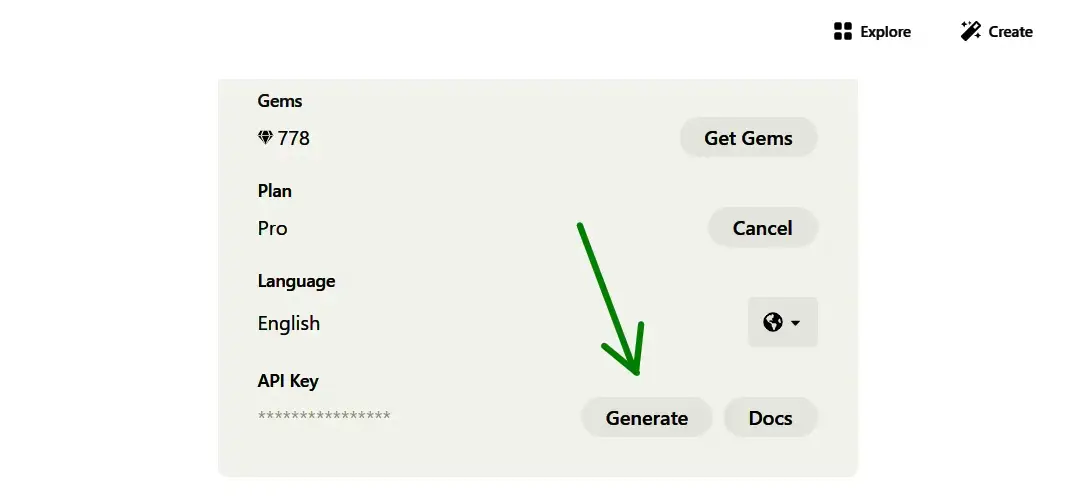
Paste into Settings
In game: Settings → API models → paste the key.
Done — play!
Click a character — sandbox, or “New game” — story mode.
The heart and brain of the game
There’s no game without a text model. An API is how the game “talks” to a remote neural network over the internet using a key. How to choose fast: to start free — Gemini (has a limit) or OpenRouter (free models are marked free:); near-uncensored quality — Claude; cheaper and for experiments — Grok.




📋 Step-by-step for each provider
Gemini. aistudio.google.com → Get API key → Create API key → copy into Settings.
OpenRouter. openrouter.ai → Keys → Create Api Key → set a name/limit → copy.
Claude (Anthropic). console.anthropic.com → API Keys → Create Key → top up billing.
OpenAI. platform.openai.com → gear top-right → API keys → Create new secret key → top up billing.
Grok (xAI). console.x.ai → API Keys → Create API key → Manage-Billing.
Groq. console.groq.com → Keys → Create API Key → billing.
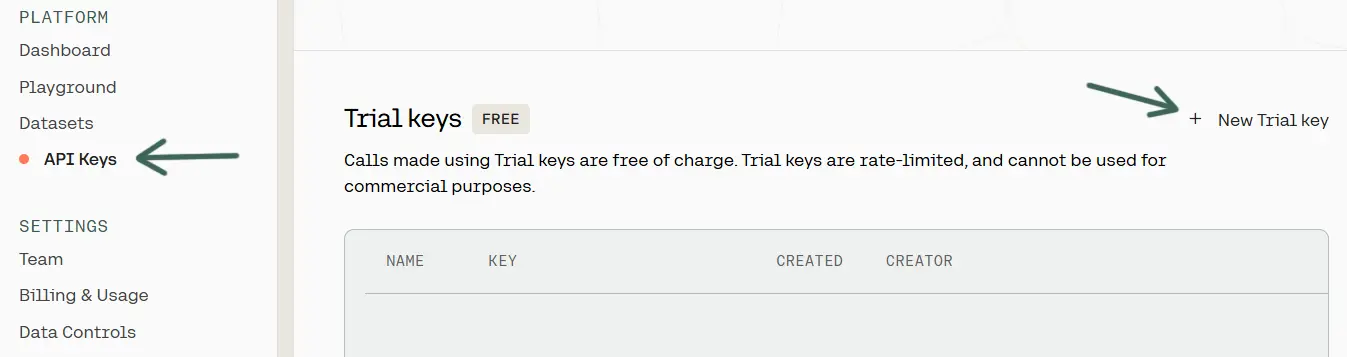
Cohere. dashboard.cohere.com → API Keys → Trial (free) or Production (+ billing).
🔧 Getting keys — the fine print
Gemini. In countries where Gemini is blocked you’ll need a VPN (US is best). It’s more reliable to use a Google account whose main language is American English. In the game you can enter several Gemini keys separated by commas (doesn’t work with the built-in proxy).
Paid models (Claude, OpenAI, Grok, Groq, Cohere). After creating a key, top up your balance in the provider’s billing tab — requests won’t work without funds.
Custom endpoint. In settings you can connect any OpenAI-compatible API: enter the URL (https only), the key (if needed) and the model name.
🧠 koboldcpp
These models still don’t quite reach the quality of the big API ones, but there’s basically no censorship at all, they’re completely free, and fully private — your pick if you don’t trust big companies, care about privacy, and don’t want to pay.
In settings choose text → click “koboldcpp” and pick a model
Download a model and drop it into the game folder resources/koboldcpp, then in settings choose text → click “koboldcpp” and select the downloaded model
download koboldcpp → GGUF models on huggingface →
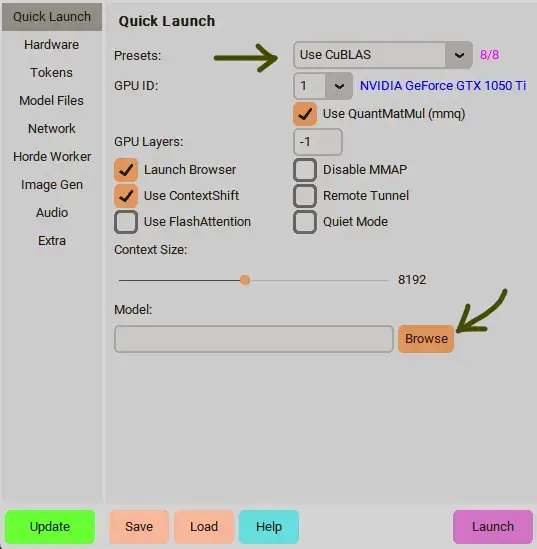
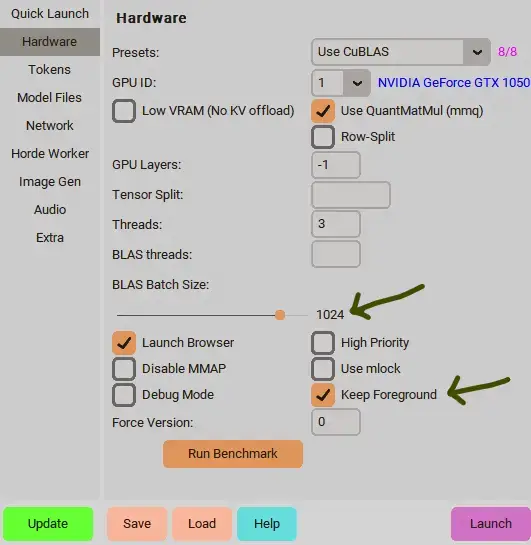
Launch: koboldcpp → load a model → start the game (pick “koboldcpp”). In the game only port 5001 works (Network tab). The in-game console button shows koboldcpp logs. It’s for those who know what they’re doing or want fine GPU/CPU control.
Recommended models:
- Saiga Nemo 12B Q5_K_M [8.5gb] Memory: at least 16 gb · Not lower than nvidia 3060 (8/12 gb) or equivalent
- Qwen3.5-9B-Claude-4.6-HighIQ-THINKING-HERETIC-UNCENSORED Q4_K_M [5.5gb] Memory: at least 12 gb · Not lower than nvidia 2070/2080 (8 gb) or equivalent
- MN-CaptainErisNebula-Chimera-v1.1-THINKING-ClaudeOpus4.5-12B-heretic-uncensored i1-Q4_K_M [8.5gb] Memory: at least 16 gb · Not lower than nvidia 3060 (8/12 gb) or equivalent
- Gemma-4-31B-StyleTune-heretic-ara i1-Q4_K_M [19.3gb] Memory: at least 32 gb · Not lower than nvidia 4070 (8/12 gb) or equivalent
- Qwen3.5-122B-A10B-heretic-v2 i1-Q3_K_M [54.6gb] Memory: at least 64 gb · Not lower than nvidia 4070 (12 gb) or equivalent, 16–24 gb is better · Knowledge of a 122b, but only 10b works on each word, so it answers faster than its size suggests. Best for long stories, complex characters and lore
📱 koboldcpp-remote
You can’t run a local model on a phone, but you can play on a phone paired with a powerful PC — in two ways:
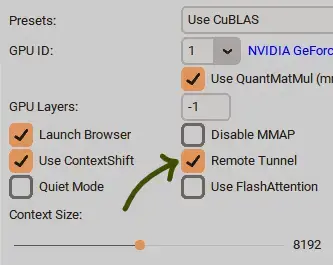
▪ Cloudflare (built-in): launch koboldcpp → enable Remote Tunnel → load a model → on the phone pick “koboldcpp-remote” and paste the URL kobold gave you.
▪ ngrok: sign up at ngrok, download the plugin (packed ngrok + proxy) → run start.bat and paste your token → run koboldcpp with Remote Tunnel off → on the phone pick “koboldcpp-remote” and paste the ngrok URL.

 Uncensored Local AI android
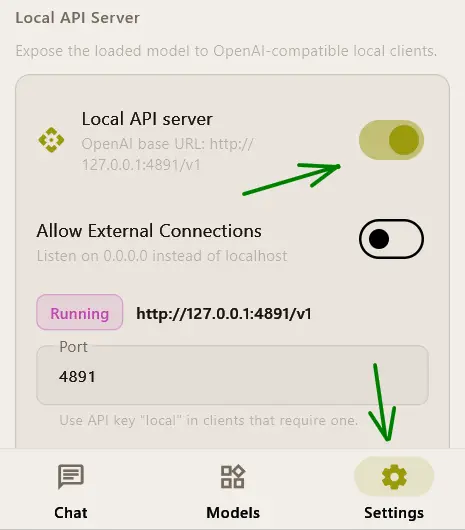
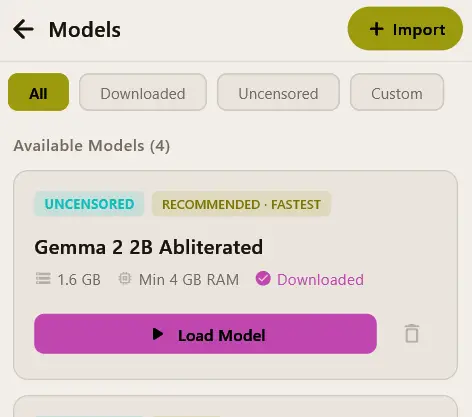
A local model right on Android: install the app, load a GGUF model and enable the local api server. In the game pick “uncensored local ai” and leave the endpoint field empty (defaults to 127.0.0.1:4891).
official repo → app-arm64-v8a-release.apk ↓
🗄 koboldai — the legacy option
Supported but not recommended (koboldcpp is easier). download for Windows · repo & Linux solution.
Launch koboldai (local) → load a model → set “chat” mode → start the game (pick koboldai). It only works on port 5000.
To verify: after sending a message from the game → open the “memory” menu in kobold — the system context should load there in all its glory.
Image generation
🎨 Stable Diffusion · ComfyUI
Maximum privacy, no censorship. Local image models don’t need mega-hardware and match API quality (a text AI keeps the whole plot in its head, while an image model just paints one canvas in layers — so it needs less memory). Stable Diffusion/koboldcpp is bundled — or set up ComfyUI separately. Drop models (*.safetensors, *.gguf) into resources/stablediff/models, LoRAs into resources/stablediff/lora. The easiest place to find them is civitai.
In settings choose images → choose stable diffusion/koboldcpp, or download and set up comfyui separately → then pick a model
Download a model and drop it into resources/stablediff/models → then in settings choose images → choose stable diffusion/koboldcpp, or download and set up comfyui separately → then pick a model
Recommended models:
- iLustMix [6.7gb] Gpu: 6–8 gb and up (nvidia 2060 or better), ram: 16 gb and up · Anime and 2.5d illustration. Prompt with danbooru tags, works with illustrious LoRAs. Already bundled with the game
- Anima [3.8gb] Gpu: 6 gb and up, ram: 16 gb and up · Light, fresh anime model; understands plain sentences and handles scenes with several characters well. Needs qwen3-0.6b (t5) and the qwen-image vae in the fields
- WAI-illustrious-SDXL [6.4gb] Gpu: 6–8 gb and up, ram: 16 gb and up · The most popular illustrious anime model: stable anatomy, tons of LoRAs, tag prompts
- RealVisXL V5.0 [6.9gb] Gpu: 8 gb and up, ram: 16 gb and up · Photorealism and portraits with natural skin, does both sfw and nsfw. On weak hardware grab the lightning version (4–6 steps)
- z-image-turbo Q4_K [3.9gb] Gpu: 8 gb and up (6 minimum), ram: 16 gb and up · Fast photorealism in 8 steps, understands long descriptions and text in images, uncensored. Needs qwen3-4b (t5) and flux’s ae.safetensors vae in the fields
- qwen-image-2.1 [4.5gb] Gpu: 12 gb and up (works on 8 gb, but ~5 min per image), ram: 32 gb and up · Best prompt following: complex scenes, poses, text. Slow. Needs qwen3-vl-8b (t5) and the qwen-image-2.1 vae in the fields
- Chroma1-HD Q4_K_M [5.6gb] Gpu: 12 gb and up, ram: 32 gb and up · Uncensored, flux-based, any style from photo to art. Slow (~25 steps). Needs t5xxl and flux’s ae.safetensors vae in the fields
The easiest way to find models and LoRAs is on civitai
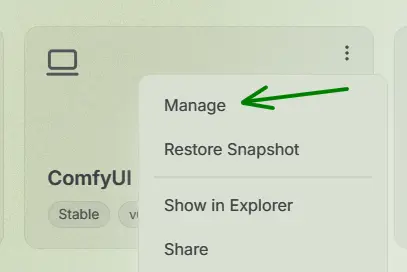
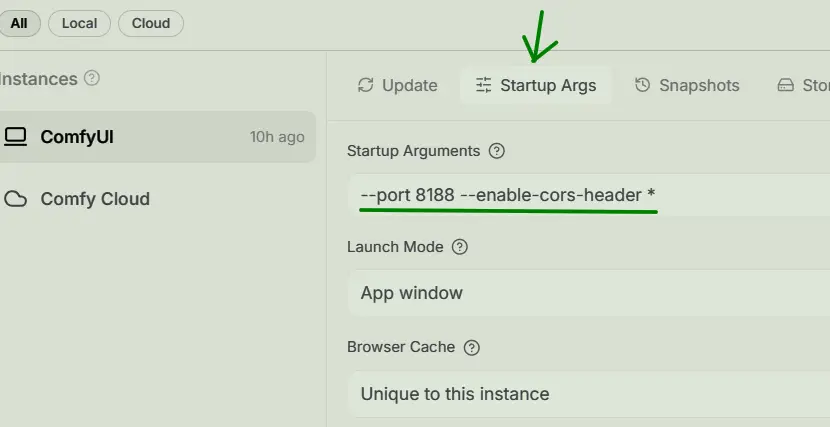
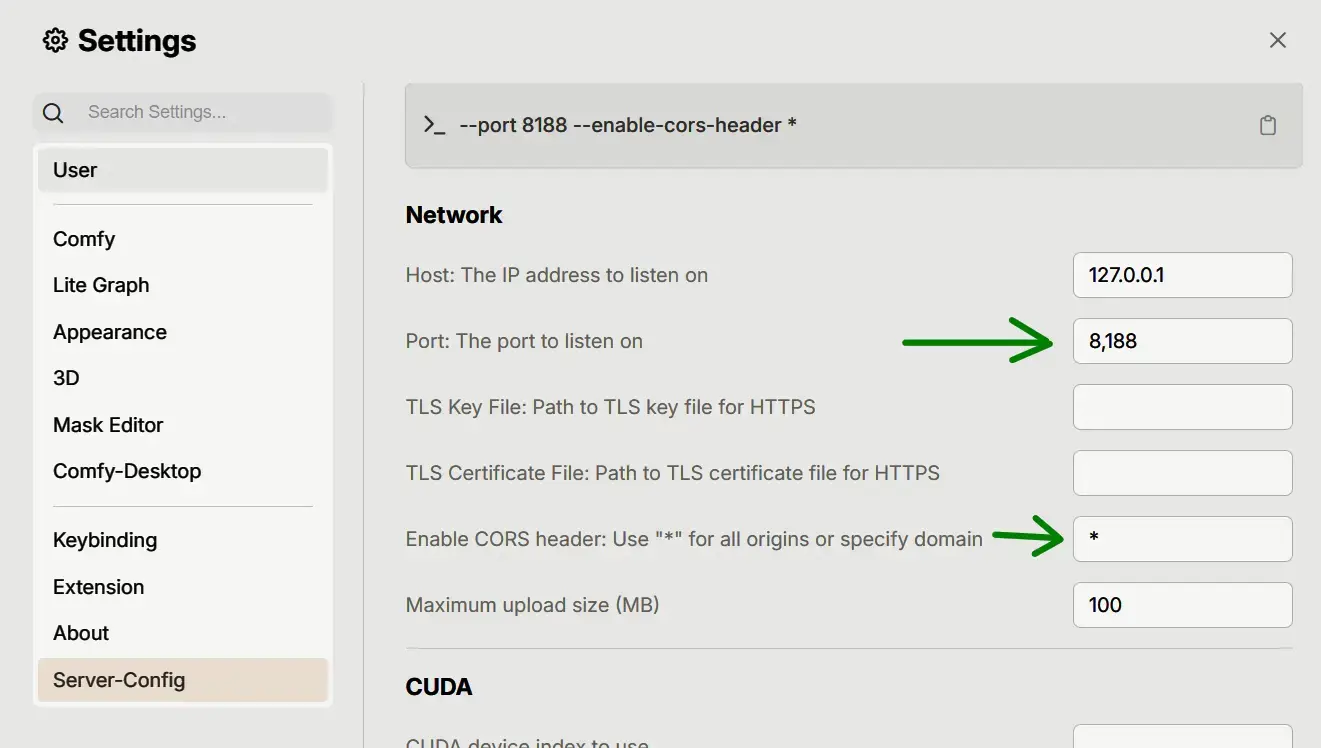
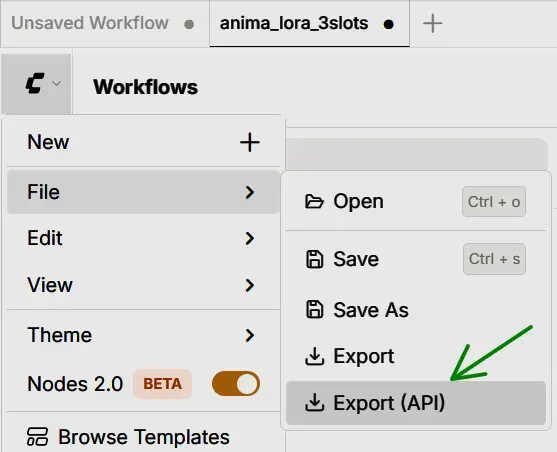
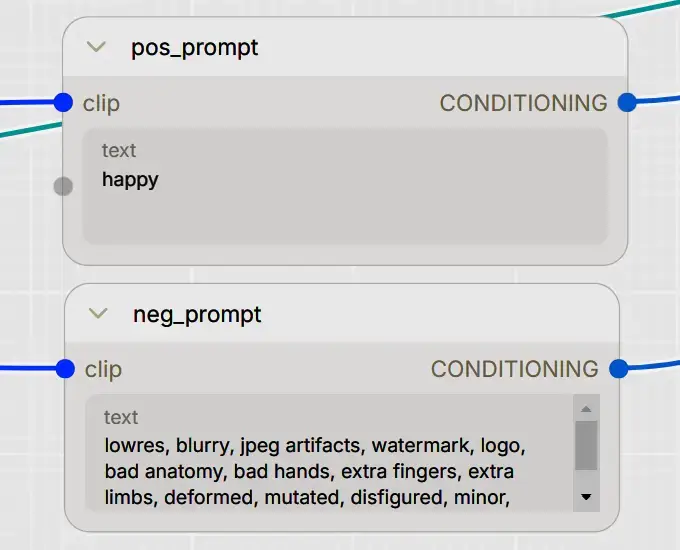
ComfyUI: in ComfyUI settings paste --port 8188 --enable-cors-header *. For your workflow to work in the game, rename the prompt fields to pos_prompt and neg_prompt → save the json via File → Export (API) and select it in the game settings. Example workflows are in resources/comfyui.
All configuration is done in comfyui. For changes to affect requests coming from the game, you need to update the workflow json file.

✨ Anima in ComfyUI
Launch ComfyUI → drag the workflow .json straight into the ComfyUI window → download and place the files into the right folders:
- anima-base-v1.0.safetensors → ComfyUI/models/diffusion_models/
- qwen_3_06b_base.safetensors → ComfyUI/models/text_encoders/
- qwen_image_vae.safetensors → ComfyUI/models/vae/
- anima-turbo-lora-v0.2.safetensors → ComfyUI/models/loras/
Recommended Anima settings: with turbo-lora — steps 8–12, cfg-scale 1, LoRA strength ~0.7; without turbo-lora — steps 20–30, cfg-scale ~6. The same values apply when running Anima via koboldcpp. clip-skip has no effect on Anima.
⚙️ Generation parameters
📝 In-game fields
🎬 Video (Wan)
Set the frames slider above 1 and generation becomes a short video (WebM in the desktop app, GIF in a browser, ~16fps). Works only with wan / ltx video models — anima and sdxl ignore frames. Light kit for 8gb vram:
- Wan2.1-T2V-1.3B-Q8_0.gguf [1.5gb] → resources/stablediff/models
- umt5-xxl-encoder-Q4_K_M.gguf [3.7gb] → t5-xxl
- wan_2.1_vae.safetensors [254mb] → vae
Higher quality option (tight on 8gb vram), umt5 encoder is the same:
- Wan2.2-TI2V-5B-Q4_K_M.gguf [3.4gb] → resources/stablediff/models
- wan2.2_vae.safetensors [1.4gb] → vae
Model → model list, encoder → t5-xxl field, vae → vae field, clip-1/clip-2 empty. Don't mix up the vae: wan_2.1_vae for 1.3B, wan2.2_vae for TI2V-5B. First run: frames 5–13, 512×512, steps ~20, cfg-scale 5–6. Style — via prompt or wan loras from civitai
Voice & speech recognition
Lines can be voiced (speech synthesis), and you can answer the character by voice (recognition). Both work via API or locally.

⚡ supertonic cpu
The lightest and fastest model, supertonic, is included in the build and runs on cpu. It falls short of its beefier siblings in quality, but it’s pretty decent, especially on weaker machines. In settings choose speech → expand “speech synthesis” → enable supertonic speech and pick the voice you like
🎙 qwen3-tts · coqui XTTS-2
Local speech synthesis: qwen3-tts (bundled in win-local) or coqui XTTS-2. Enable “local speech synthesis” → pick a preset voice or clone your own — a 6–15 sec wav clip, put the file into resources/speech and select it in settings. A local server keeps the model loaded, so on first launch the Windows firewall will ask for permission.
In settings choose speech → expand “speech synthesis” → choose one of the preset “qwen3-tts” voices, or use voice cloning—a 6–15 second wav recording. Enter the text that’s spoken in the recording; the more accurate it is, the better the cloning quality will be
qwen3-tts download ↓ and unzip it into the resources/speech/qwen folder → then select it in the settings speech → expand “speech synthesis” → pick one of the preset voices or upload a wav clip for voice cloning. For high-quality cloning, make sure you enter the text spoken in the file as accurately as possible
coqui-tts download ↓ and put the files into the game folder resources/speech/coqui → then in settings choose speech → expand “speech synthesis” → pick one of the built-in voices or upload your own clip (6+ sec, wav)
💡 For good cloning, type the text spoken in the recording as accurately as possible. Switching the reference wav may require a game restart.
Speech recognition: the browser Speech API is simplest and fastest; because of Google’s restrictions for electron shells it opens in the browser, so keep the tab open. Local (whisper ggml) is a bit higher quality, private and offline, but slower for now. For OpenAI we recommend enabling its custom recognition instructions in settings.
Controls, context and locations
⌨️ Keyboard shortcuts
💡 Context
Write your custom context in the form of instructions, experiment. Your context will be placed before the basic one, and is used only in sandbox mode
🟣🟢🔴 Using the buttons “erase sexy context”, “erase character”, or “erase character and sexy context”, you can cut out parts of the system context — use this if your custom context conflicts with the system one and you want to define everything yourself
The basic instructions keep only the system triggers and minimal information about the character’s appearance
📍 Location
Manual location switching, enabled in the sandbox
You can switch locations in the sandbox from the menu; in the story part, via dialogue. It’s also used as an alternative to gameplay without image generation.
Available locations in the game:
apartment, bathroom/shower, restaurant/cafe, jungle/forest, field, beach, library, desert, subway, moon, store/shopping center, city, hospital, park, club, space, car, winter cabin/city/forest, abandoned warehouse/factory, stadium, ruins celestial city, wizard tower/ancient observatory, crystal cavern, ice plateau in mountains, bdsm room, roof, winter city, winter forest, police dp, prison, sofa, bedroom, beach house, spaceship, photo studio, swimming pool, airport, kitchen, class
The bot automatically determines from the context of the recent messages whether the location has changed. If the location hasn’t changed, you can simply write it more explicitly in the dialogue with the character, for example: 'the location has changed, now we are in the desert'
Common questions
Is the game free?
Some extra settings, custom contexts, and DnD modes are available with a password (updated about once a month) — via a Patreon subscription or a one-time purchase on itch.io
Do I need internet?
Are my keys safe?
Where are my saves and settings stored?
multiic-save.json file that can be imported later. %APPDATA%\Multiic\ ~/Library/Application Support/Multiic/ ~/.config/Multiic/The model won’t respond / error
The local model won’t start
C:\multiic. Avoid Program Files, system folders, OneDrive, and folders with restricted permissions. Make sure model files are not marked as “read-only”.I want to use external KoboldCPP
http://localhost:5001.KoboldCPP picked the wrong GPU
Images come out censored
Stable Diffusion, ComfyUI, and KoboldCPP — which one should I use for images?
Where should local generation models be placed?
Image generation is very slow
Still have questions?
Reach out on Discord — a small, friendly community will help u, and I try to reply often myself too. And thanks to everyone who supports the project 🖤